Help
How the desk works.
Walkthroughs for Free, Pro, and Studio. Open a title. Stay on your invoice — this page opened in its own tab.
Start here
Top asked questions
Do I need an account to invoice?free
No. Open the desk and write. The free desk never asks you to sign in. An account is only for Pro and Studio, so the watermark comes off and the desk follows you to another device.
How do I take the Letterdue credit off the PDF?prostudio
That’s Pro. Unlock on Pricing, create your login with the email you paid with, and the credit comes off. Studio seats get the same. If you miss the bar, pick the Letterdue template on the invoice — same Atelier letter, credit stays on.
How do clients pay me?prostudio
Connect Stripe in Settings, then Copy pay link on the invoice. They pay by card. The money lands in your Stripe — Letterdue only marks the invoice paid. See Get paid below for the whole walkthrough.
Does Letterdue keep the card money?prostudio
No. You are the merchant. Pay links are destination charges to the Stripe account you connected. Letterdue’s cut is the Pro or Studio subscription, not a slice of the invoice.
Can I email the invoice from Letterdue?freepro
Free: copy the letter or open your own mail app. Pro: Send from Letterdue, PDF attached. Replies go to the email on your letterhead — put a real one there first.
What’s the difference between Pro and Studio?prostudio
Pro is one person: watermark off (keep the Letterdue letter if you want it), Ledger and Bond, send, nudges, resend, pay links, logo on the paper, signatures, ten letterheads, saved services, CSV, a login that holds the desk. Studio is five of those seats on one bill. Firm Stripe shares People and The floor. Each seat is a private Pro desk — own Stripe, own list. The owner switches in Settings.
Where does Studio money land?studio
Default is Firm Stripe: every seat’s pay link deposits to the owner’s connected Stripe, People is one list, The floor is one board. Switch to Each seat and every login becomes a private Pro desk — own Stripe, own People, The floor off. Switch back and personal Stripe on other seats disconnects, People and The floor come back. Confirm either way. It changes where client money goes.
I deleted the sample saved services. Will they come back?pro
No. New accounts get the sample list once. Remove one or all of them and they stay gone. Your own services are never overwritten.
What size is the PDF?freepro
US Letter, 8.5 × 11 inches. What you see on the paper is what prints. Don’t scale the window hoping the PDF will change — it won’t.
How do I cancel Pro or Studio?prostudio
Settings → Manage billing. That’s Stripe’s portal. Cards never sit on Letterdue. Invited seats and the complimentary desk don’t see Manage billing — only the person who pays the plan.
Free
Open the desk
Make a free invoice with no accountfree
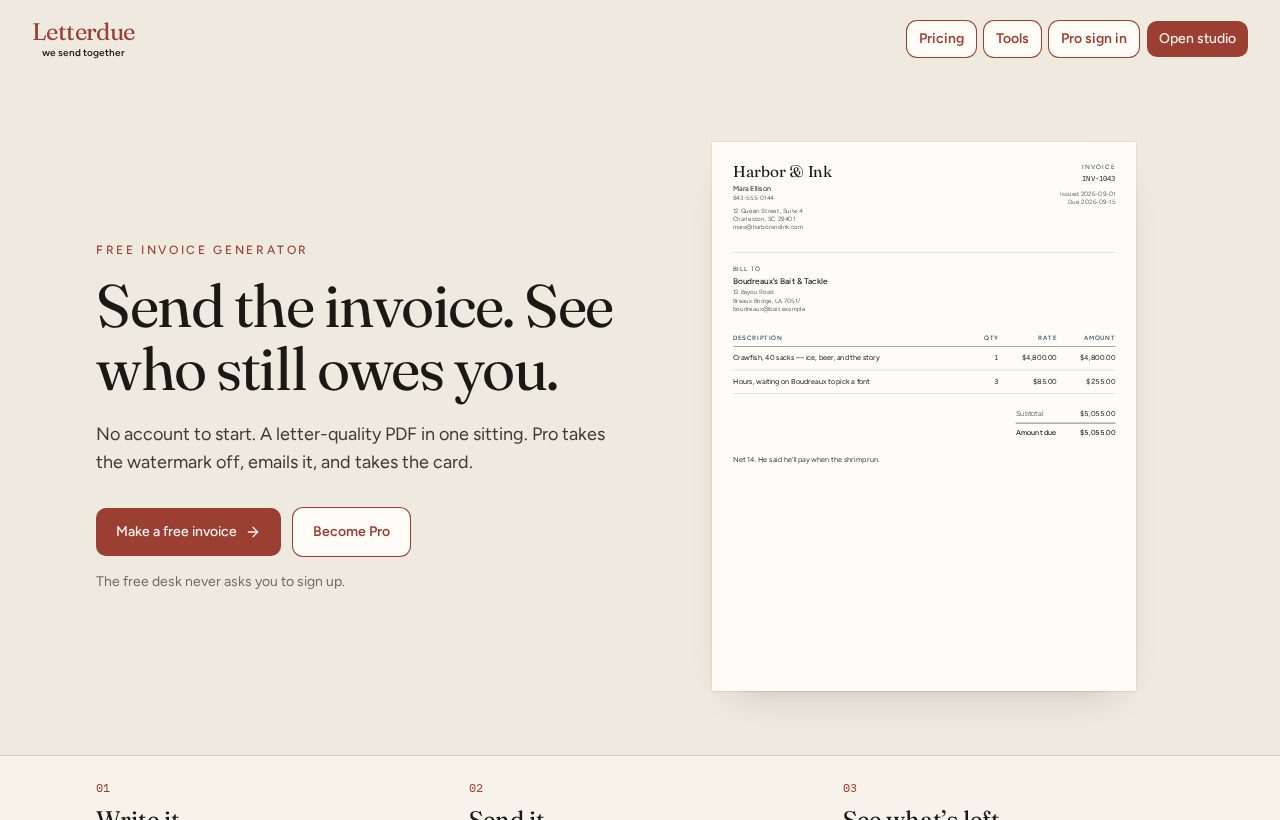
From the home page, Make a free invoice. Or Open studio in the header. You land on The desk. Nothing to install.
- 1
Click Make a free invoice.
- 2
The desk shows who owes you and the list of letters.
- 3
New invoice starts a draft. Fill the client and the lines. Print / Save PDF when it’s a letter.
The desk
Who owes you
Read the numbersfreeprostudio
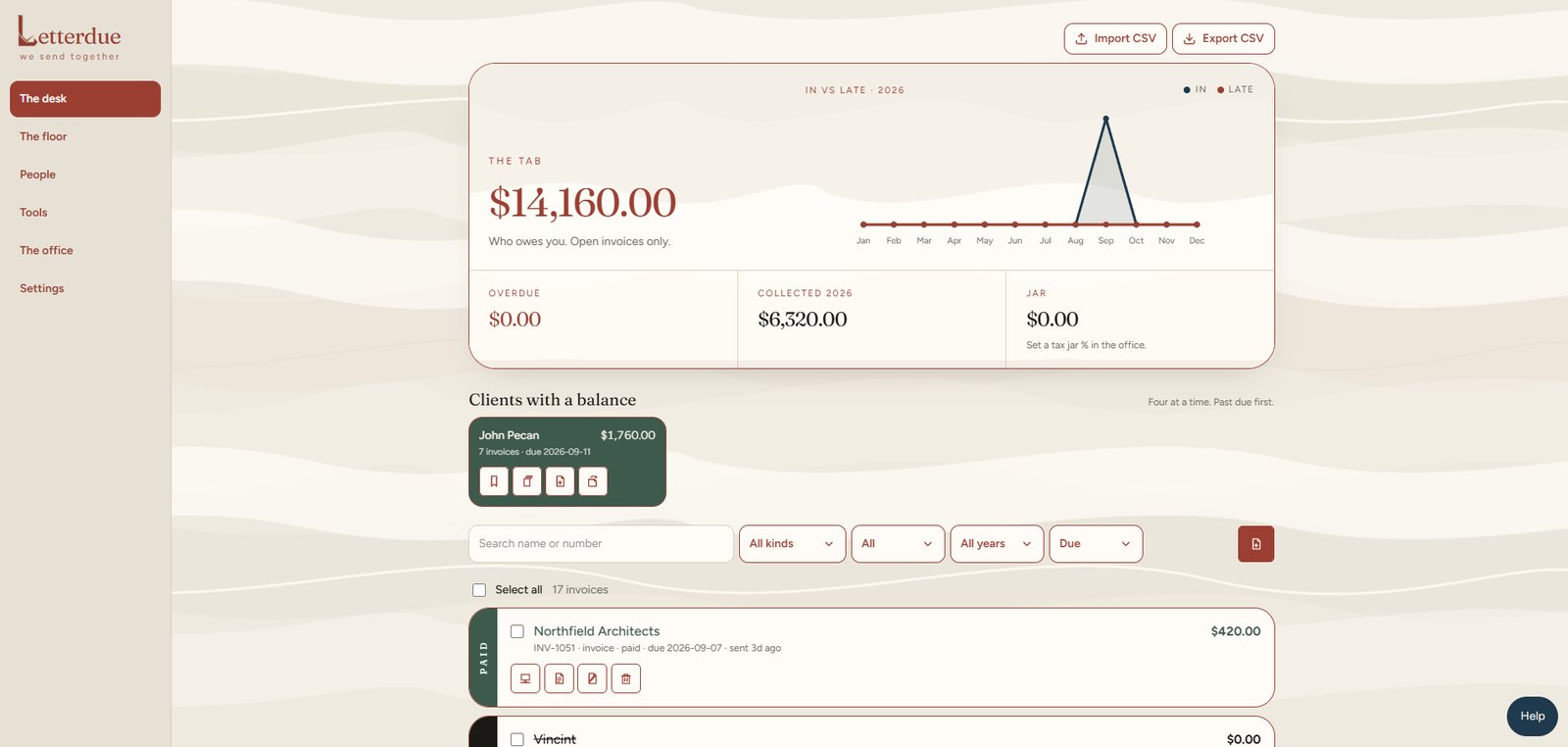
The board at the top is the tab. Who owes you is open invoices — drafts, sent, anything not paid or void. Overdue is sent and past the due date. Collected is paid this calendar year. Jar is your tax % of that. The line is money that came in vs money that went late, every month of the year. Hover a month for the numbers. The year menu under the board filters the list. Long lists paginate — ten letters on a page, Previous / Next. Select all still grabs the whole filtered set, not just this page.
- 1
Search by name or invoice number.
- 2
Filter All kinds / Invoices / Estimates / Bids, then Draft / Sent / Accepted / Paid / Void.
- 3
Open a row to edit the letter. Tick boxes to delete more than one.
- 4
Clients with a balance: four at a time, past due first. Latest opens the last letter. All jumps to People.
- 5
On a sent letter, Resend emails the current PDF and pay link — whatever you last saved, not the old one. PDF only dims itself while it saves. Neighbors stay put.
Marks
Icons
What each mark isfreeprostudio
Letters on the desk and The floor, and people on the list, use these marks instead of long button names. Hover a mark to read it. Nudge, Resend, and Always / Never are Pro and Studio.
 etterduewe send together
The desk · The floor · People
PDF
Pay link
Resend
Mark paid
Void
Delete
Open on desk
Nudge
Always
Never
New invoice
Edit
All
Latest
Color
Palette
The colors we usefreeprostudio
Letter tabs in the office use the ten darker chips. People use those same ten, in order, before a color repeats. The creams are the page wash — not client cards.
etterduewe send togetherThe palette
Letter tabs
Clay
Navy
Sage
Clay deep
Amber
Ink
Umber
Slate
Olive
Walnut
Page wash
Paper
Raised
Sunken
Sheet
Cream
Line
The letter
Write an invoice
Fill the letterfreepro
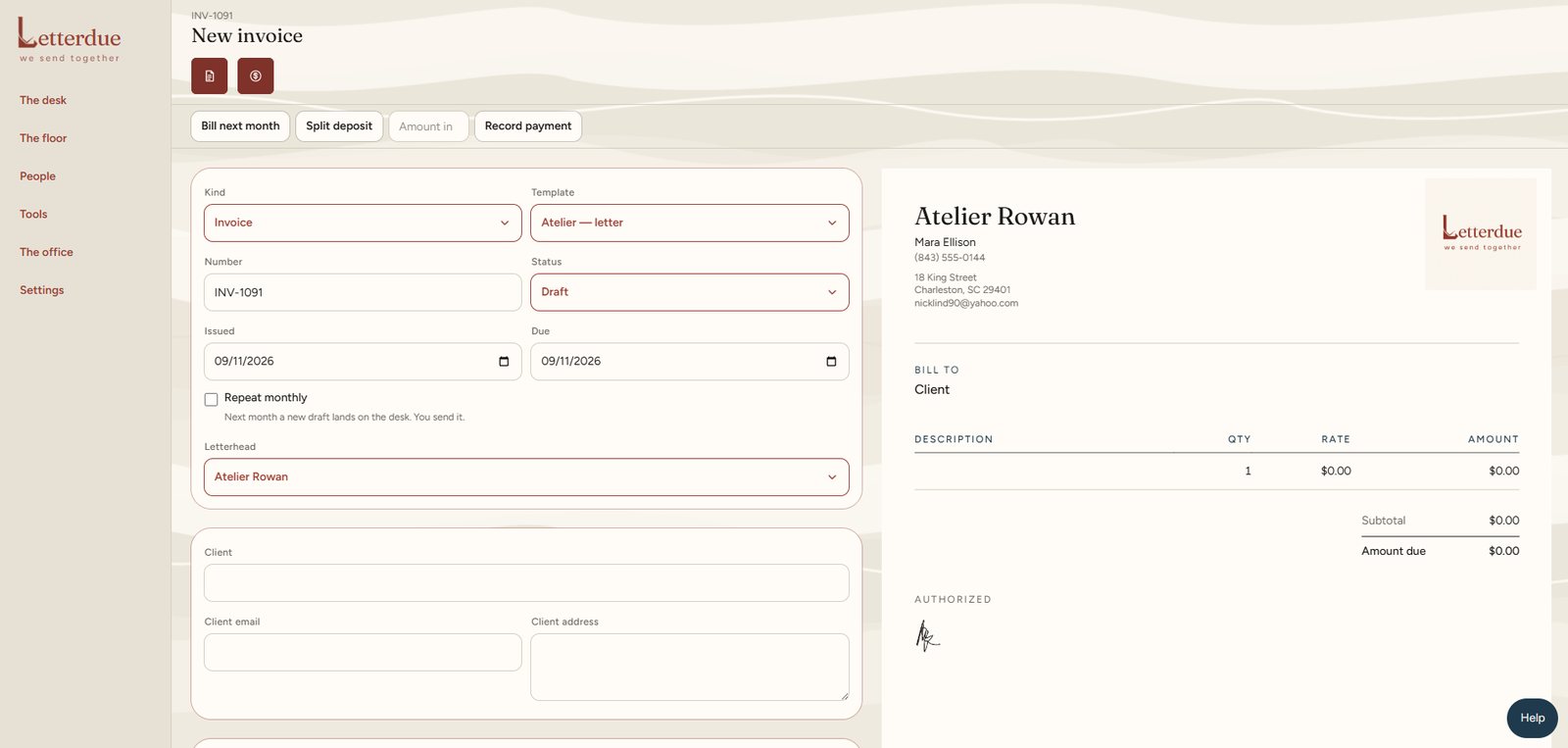
Left side is the form. Right side is the paper — US Letter, live. On a phone or iPad, Edit and Paper tabs swap them in every orientation so nothing squishes.
- 1
Pick Invoice, Estimate, or Bid.
- 2
Atelier is free for invoices and estimates. Ledger and Bond are Pro. A bid is its own letter — job, scope, price schedule, not included, valid until, and a line for them to accept.
- 3
Client name autocompletes from People. Email and address fill if we know them.
- 4
Add lines: description, qty, rate. Qty can be ea or hrs — hours print as hours on the letter.
- 5
Tax, discount, notes, due date, and Net days live on the form and on the letterhead.
- 6
Bill next month copies the letter forward. Split deposit makes a 50% invoice and a remainder.
- 7
Repeat monthly: when the month turns, a new draft of this letter lands on the desk. You send it. The clock does it even if the desk is closed.
- 8
Record payment types an amount in — it shows as a minus on the letter.
Send a bid on a jobfreepro
A bid is not an invoice. It’s the offer: this job, this scope, this number, good until a date. Construction folks send these. Estimates are a lighter guess. Invoices are the bill after they say yes.
- 1
Kind → Bid. Number becomes BID-____. Valid until defaults to 30 days.
- 2
Client is who you’re bidding. Job and job site are the work and where it is — they can differ.
- 3
Scope of work is sentences. Price schedule is the money. Not included is permits, rock, paint, the extras.
- 4
The paper has an acceptance line. They sign that. You don’t send a pay link on a bid.
- 5
They accepted — make an invoice keeps this bid and opens a new invoice with the same lines. The bid is marked Accepted. Do it again and it just opens that invoice.
- 6
Send from Letterdue (Pro) puts an Accept this bid link in the email. They tap it — no login. You get a note, and the invoice lands on your desk as a draft.
- 7
Tools → Bid can price hours and buffer, then Start a bid with this number.
Print / Save PDFfreepro
Print / Save PDF on the invoice. The file is always US Letter. Free PDFs carry a small Letterdue credit at the bottom. Pro takes it off — you can still pick the Letterdue letter if you want the credit on purpose.
Ask to be paid
Write the reminderfreepro
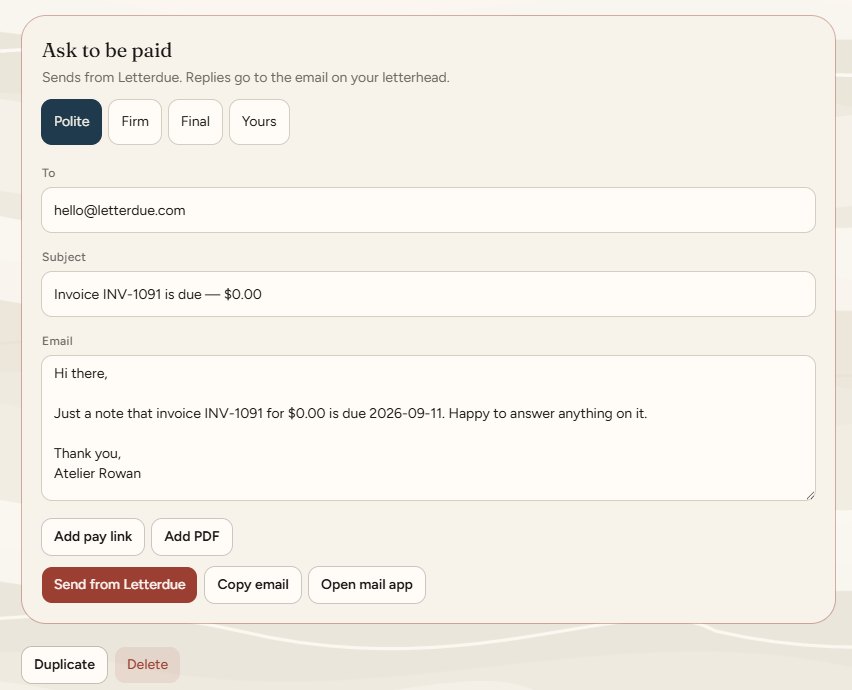
On every invoice, under the form: Ask to be paid. Pick Polite, Firm, Final, or Yours. The subject and body fill from the letter. You can rewrite them.
- 1
Free: copy the text into your own mail, or open your mail app. Become Pro to send.
- 2
Pro: Add pay link drops the live card link into the body. Add PDF attaches the letter for Send — it does not download to you.
- 3
Send from Letterdue mails it with the PDF. The draft becomes Sent if it was still a draft.
- 4
From the desk, Resend on a sent letter mails the current PDF and pay link again — whatever you last saved. Same button is on The floor.
- 5
Nudges (Pro): Settings → on for everyone, 3 / 7 / 14 / 21 days after that letter’s last send, a time. Drafts never auto-send. On a letter (desk or floor) and on People: Shop / Always / Never. Always uses those days and that hour even if Shop is off. Never skips them. The mail is the current PDF and a fresh pay link — same as Resend. The server sends even if you’re not at the desk. Send what’s due now mails every sent letter that’s already due, with a confirm first.
- 6
Replies go to the email on your letterhead. If that’s empty, we stop you.
People
Clients
Keep a list of who you billfreeprostudio
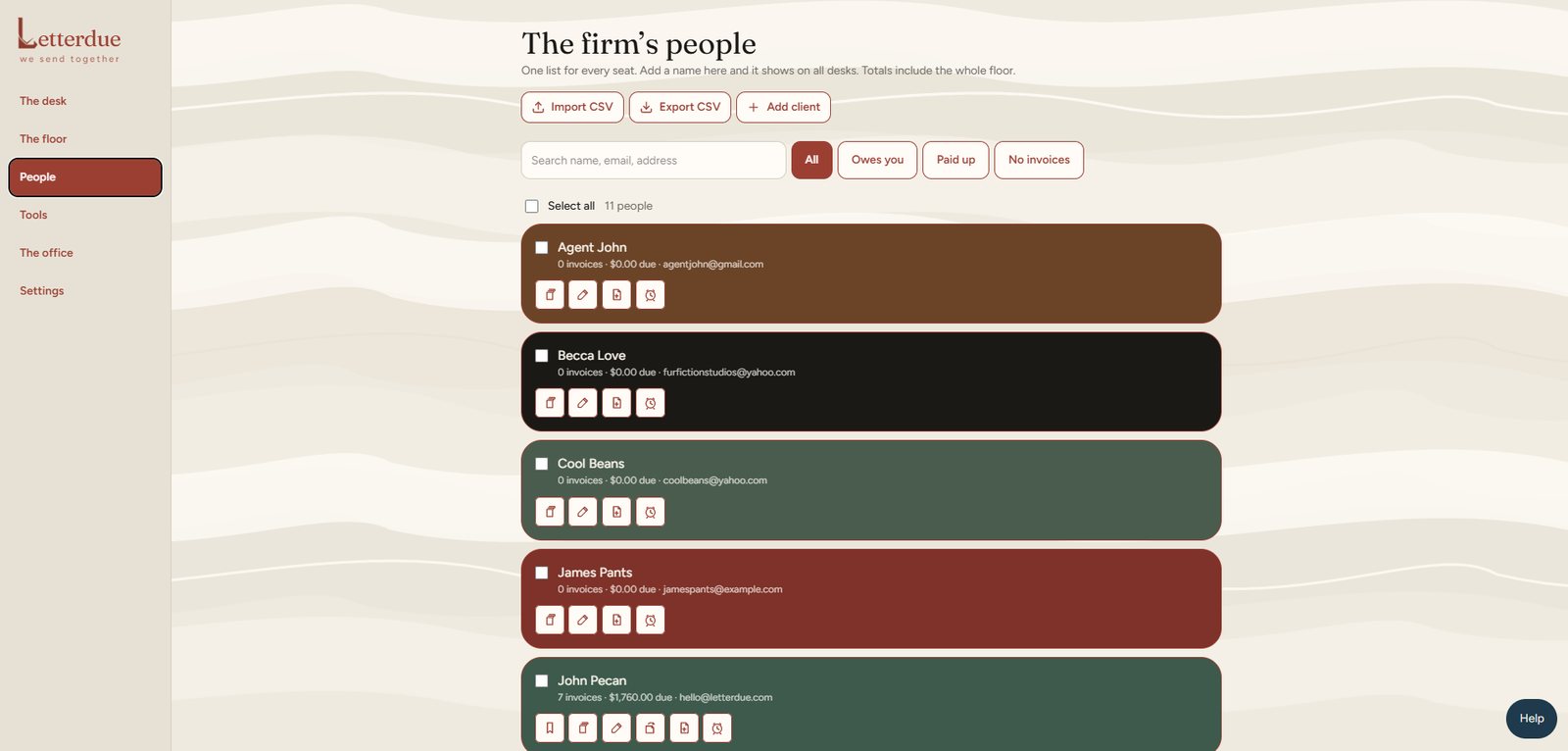
People is your client list. New accounts get a few sample names so the tab isn’t empty. Add your own. Delete the samples if you don’t want them.
- 1
Add a name, email, address. We only add someone when you send (or mark paid) and the email isn’t already on the list — not while you type. Same email is the same person, never twice. No email, no card.
- 2
Pro: Import CSV and Export CSV. Columns: name, email, address. Same email updates instead of doubling. Export is the list as it sits.
- 3
Edit a person and every invoice under that name updates.
- 4
New invoice from a card starts a letter already addressed. Pick a name on the letter and email + address fill.
- 5
Studio on Firm Stripe: one People list for every seat, merged by email. Switch to Each seat and each login keeps their own list. Switch back to Firm and we merge by email — no duplicates.
- 6
Latest / All / Edit / New invoice are the same icon buttons as the desk. Ten people on a page. Select all still grabs the filtered list.
Always, Never, Shopprostudio
Three layers, one clock. Settings is when. People is this customer. The letter is the exception.
- 1
Settings — the shop clock. On/off, 3 / 7 / 14 / 21 days after last send, the hour. Green on a letter means it’s following this clock and the clock is on.
- 2
People — this customer. Always / Shop / Never stamps all of their open sent letters. Never on Hale stops Hale’s auto mail. You can still Always one invoice after that.
- 3
The letter — exception for that PDF only. Always this job even if Hale is Never. Never this job even if Hale is Always.
- 4
Drafts, void, paid, and accepted never get an alarm. PDF still downloads.
- 5
Studio on Firm Stripe: the owner’s Settings clock is the firm clock. Seats see it; they can’t change it. Each seat: every login gets their own Pro clock.
The office
Letterheads, signatures, services
Set the letterheadfreepro
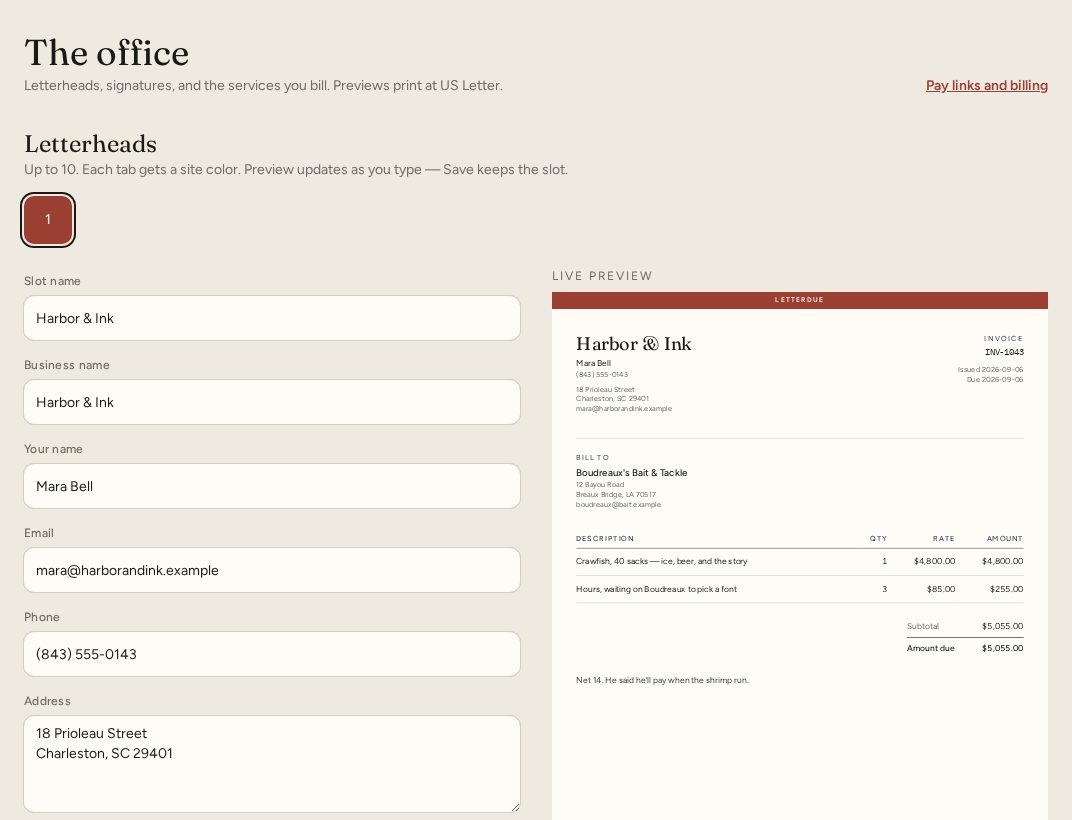
The office is the shop: letterheads, then (Pro) signatures and saved services. The preview on the right is the same US Letter as print.
- 1
Type the From lines. Save keeps the slot. The active letterhead is what new invoices use.
- 2
Free: one letterhead. Pro: up to ten. Add letterhead copies your company onto a new tab — it does not start a second business.
- 3
Pro: Choose logo sits on the preview. Click the logo to move or resize. Save letterhead hides the handle — click the logo again to bring it back.
- 4
Each tab has its own color and layout (Atelier / Ledger / Bond). Ledger and Bond still need Pro on the invoice. Paid desks can still pick the Letterdue letter if they want the credit on the paper.
- 5
Net days sets the due date. Tax jar is the percent you set aside — it shows on the invoice math, not as a line the client pays.
Saved servicesprostudio
Pro only, in The office. A short rate card. On an invoice, Add a saved service… drops the description and rate as a line.
New Pro desks get a few sample services once, so you can see how a rate card reads. Remove them whenever you want — they do not come back.
Signaturesprostudio
Pro: draw or upload a signature in The office. Pick which one is active. It prints on the letter. Up to six.
Workshop
Rate, Bid, Late, Raise
Four calculators. All free.free
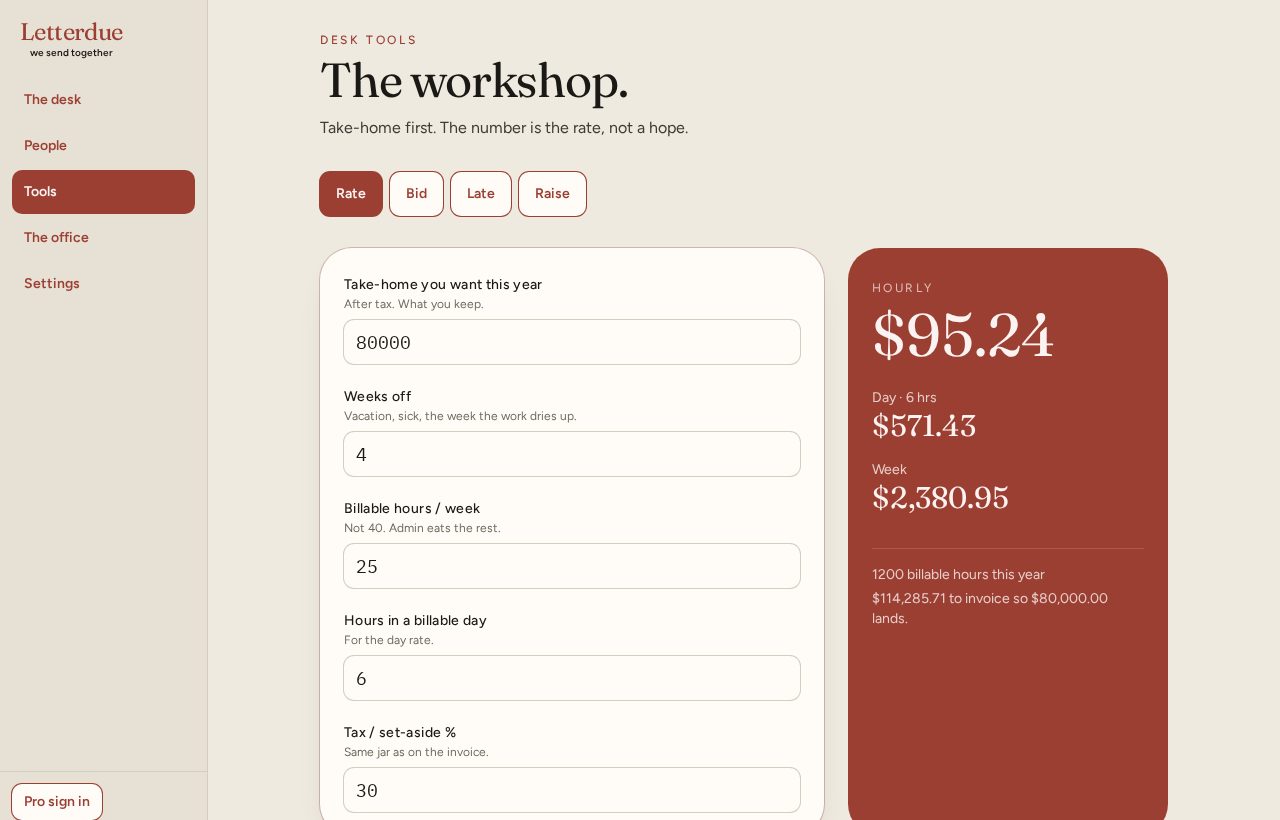
Tools is math. It does not write invoices for you. Use the number, then put it on a letter.
- 1
Rate — take-home you want, weeks off, billable hours, tax jar. It gives hourly, day, and week.
- 2
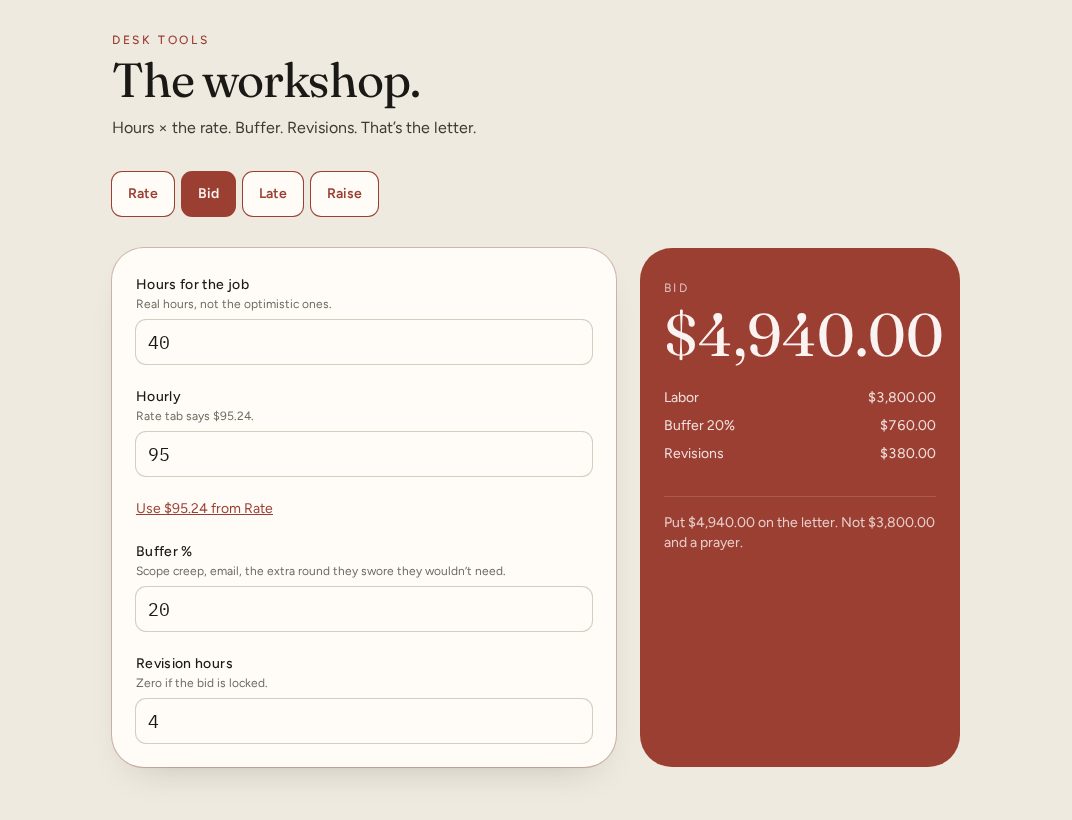
Bid — hours × the rate, a buffer percent, revision hours. That’s the letter amount.
- 3
Late — what’s still due, how many days, a fee you can stand behind.
- 4
Raise — a percent, a date, a paragraph you can paste into Ask to be paid.
Pro & Studio
Unlock, then make a login
What each plan isfreeprostudio
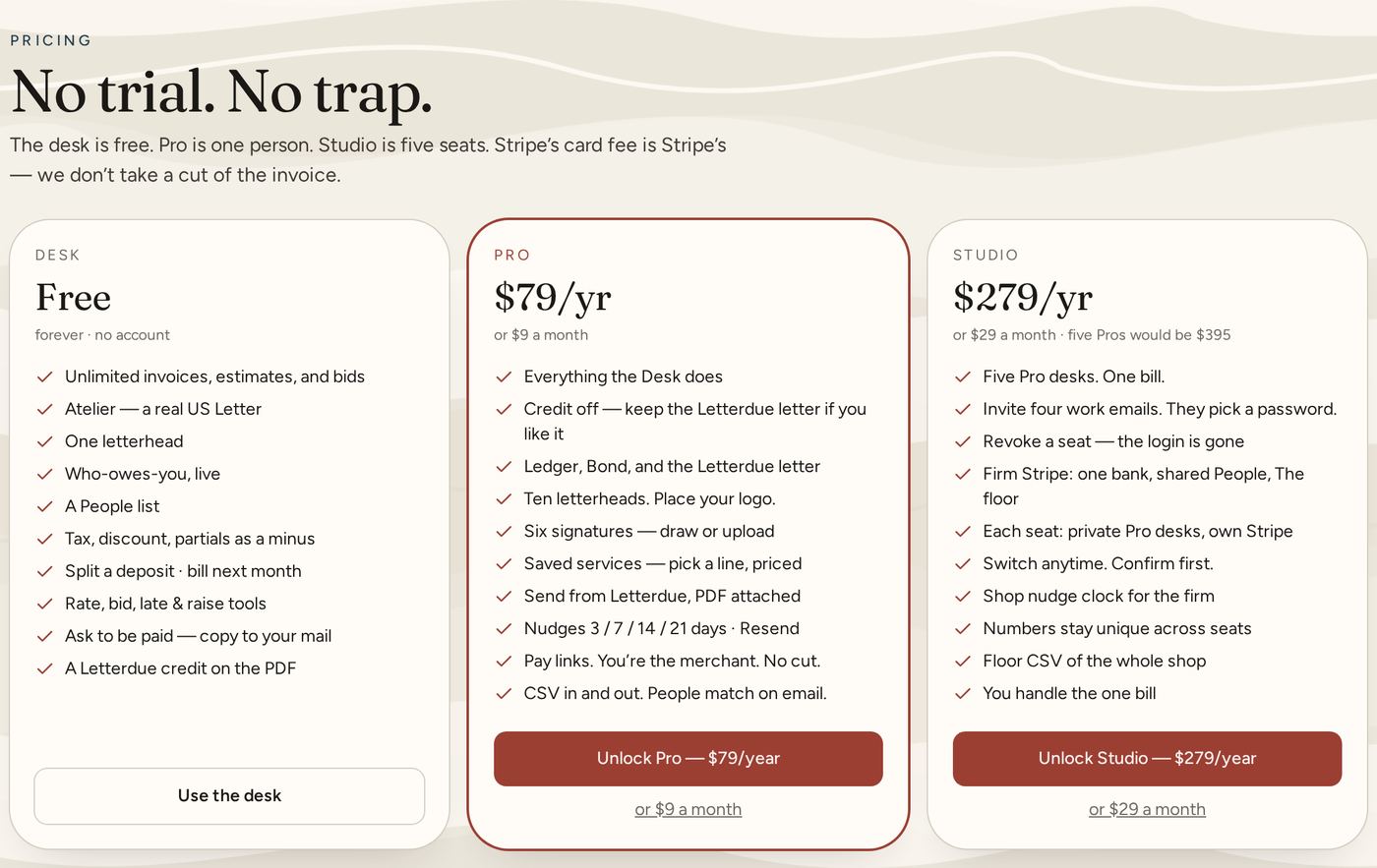
- Desk · $0 — unlimited invoices, estimates, and bids, Atelier, one letterhead, who-owes-you, People, tax and partials, split deposit, desk tools (rate, bid, late, raise), copy Ask to be paid, a Letterdue credit on the PDF. No account.
- Pro · $79/year or $9/month — credit off (keep the Letterdue letter if you want it), Ledger + Bond, ten letterheads, place your logo, six signatures, saved services, send from Letterdue (PDF attached), nudges 3 / 7 / 14 / 21 days, resend, Stripe pay links with no cut of the invoice, login sync, CSV in and out.
- Studio · $279/year or $29/month — five Pro seats, invite work emails. Firm Stripe: one bank, shared People, The floor. Each seat: private Pro desks, own Stripe. Switch in Settings; confirm first. Five separate Pros would be $395.
- More than five seats — email hello@letterdue.com. A private Stripe link. Nothing extra goes on the site.
Create the login after you payprostudio
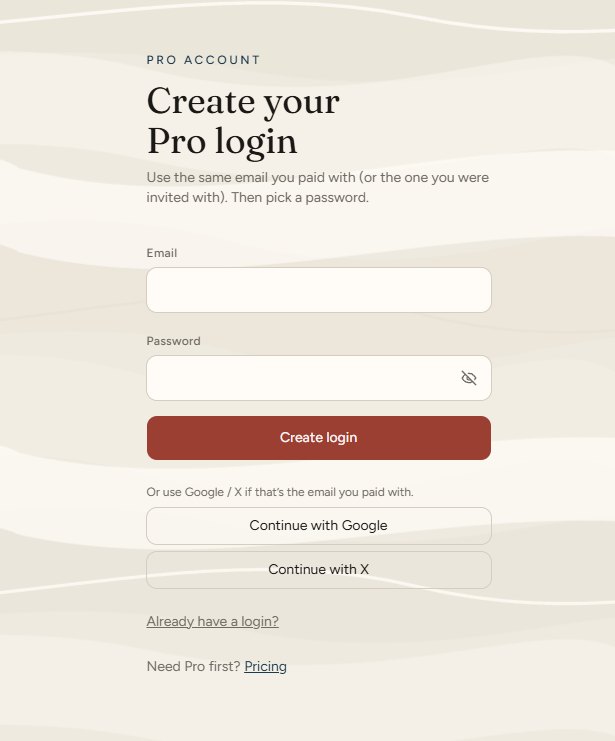
Checkout is Stripe. After it succeeds you land on Create your Pro login. Use the same email you paid with (or the one you were invited with). Password at least 8 characters. Google or X work if that’s the email you paid with.
- 1
Pay on Pricing.
- 2
Create login with that email.
- 3
You land on the desk. Watermark is off. The desk syncs to this login.
- 4
Invited Studio seats skip checkout. They open the invite, set a password, and they’re in.
Pay links
Get paid with Stripe Connect
Step by step: connect the account that receives moneyprostudio
Pay links need a Stripe account in your name — not Letterdue’s. You do this once. After that, Copy pay link on any invoice.
- 1
Sign in on Pro or Studio. Invited seats only connect Stripe if the owner set Each seat. On Firm Stripe, only the owner connects.
- 2
Open Settings (the tab, not The office). Under Invoice pay links, click Connect Stripe to get paid.
- 3
Stripe opens their form. Sign in to Stripe or create a Stripe login. Use the email you want payouts and tax forms on.
- 4
Say who you are. Individual if you invoice as yourself. Company if the letter is an LLC or shop.
- 5
Identity. Legal name, date of birth, home or business address. Individuals: last four of SSN. Companies: EIN.
- 6
What you sell. A short description is enough — design, services, the work on the letters. A website helps; if you don’t have one yet, that’s fine.
- 7
Bank. Routing number and account number for the checking account where payouts should land. This is your bank, not Letterdue’s.
- 8
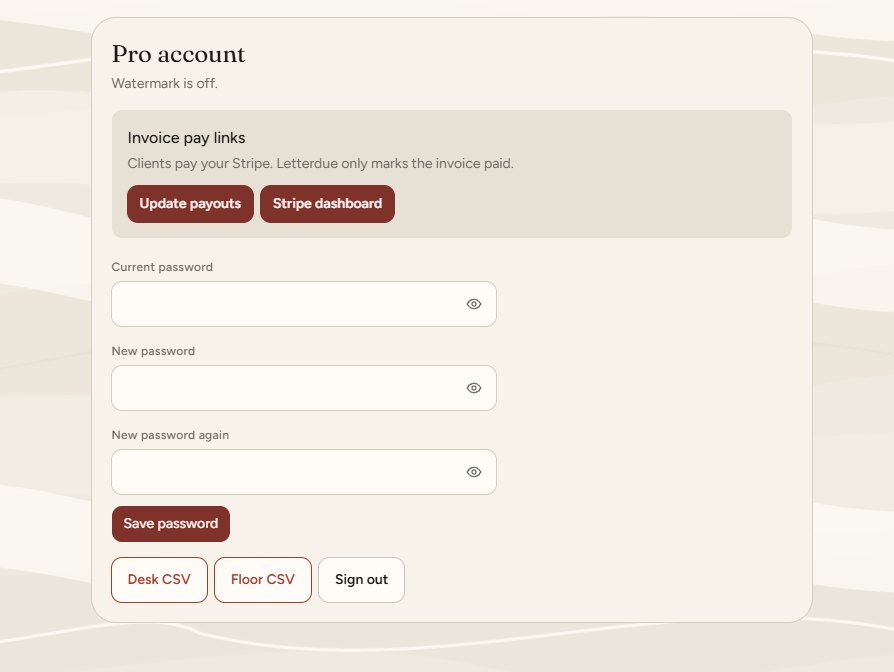
Submit. Stripe sends you back to Letterdue. The button becomes Update payouts. Stripe dashboard opens the Express view — balances, payouts, disputes.
- 9
The first payout can take a couple of days while Stripe checks the bank. After that, payouts run on Stripe’s regular schedule (often two business days).
- 10
If Stripe asks for another document later, click Update payouts and finish it. Pay links pause until they have what they need.
Letterdue never sees your bank numbers or SSN. Those stay with Stripe. You are the merchant of record for the invoices. You handle sales tax, refunds, and disputes on that Stripe account.
Copy a pay link and get marked paidprostudio
- 1
Open the invoice. Copy pay link. It’s on the clipboard with the amount due.
- 2
Or in Ask to be paid, Add pay link — it pastes into the email body, then Send from Letterdue.
- 3
The client opens the link, pays by card on Stripe.
- 4
Letterdue records the payment on that invoice. You don’t type it in unless they paid some other way (check, cash) — then use Record payment.
- 5
If a pay fails they see a simple “nothing was charged” page. The invoice is still due. They can try again.
If Connect isn’t finished, Copy pay link tells you to connect first — or, on Firm Stripe, that the owner hasn’t connected yet.
Five seats
Studio, seats, and The floor
Invite and revokestudio
The owner opens Settings. Studio seats: you plus four. Invite a work email. They set their own password. Revoke deletes their login immediately — confirm first.
Members never see invite or revoke. They don’t see Manage billing. On Firm Stripe they work the desk, People, and The floor. On Each seat they work a private Pro desk.
Firm Stripe or Each seatstudio
- 1
Firm Stripe (default): every seat’s pay link deposits to the company’s Stripe. People is one list. The floor is one board. Seats follow the owner’s nudge clock. They cannot connect a different Stripe.
- 2
Each seat: everyone connects their own Stripe — including the owner. The floor turns off. People is no longer shared. Each login is a private Pro desk with its own nudges. Turn it on before you invite anyone so new seats already invoice as themselves.
- 3
Switching asks you to confirm. Back to Firm disconnects personal Stripe on other seats and brings The floor and People back.
What Each seat does to The floorstudio
There is no extra toggle. The owner’s Firm / Each seat switch is the switch.
- 1
Each seat: The floor tab leaves every login. New letters stay on that person’s desk. Pay links use their Stripe.
- 2
Letters already on The floor stay there until you or the owner delete them. Nothing is erased by the switch.
- 3
If a seat is revoked, their login is wiped. Letters that were on The floor stay until someone deletes them.
- 4
Firm Stripe again: The floor and shared People come back.
The floorstudio
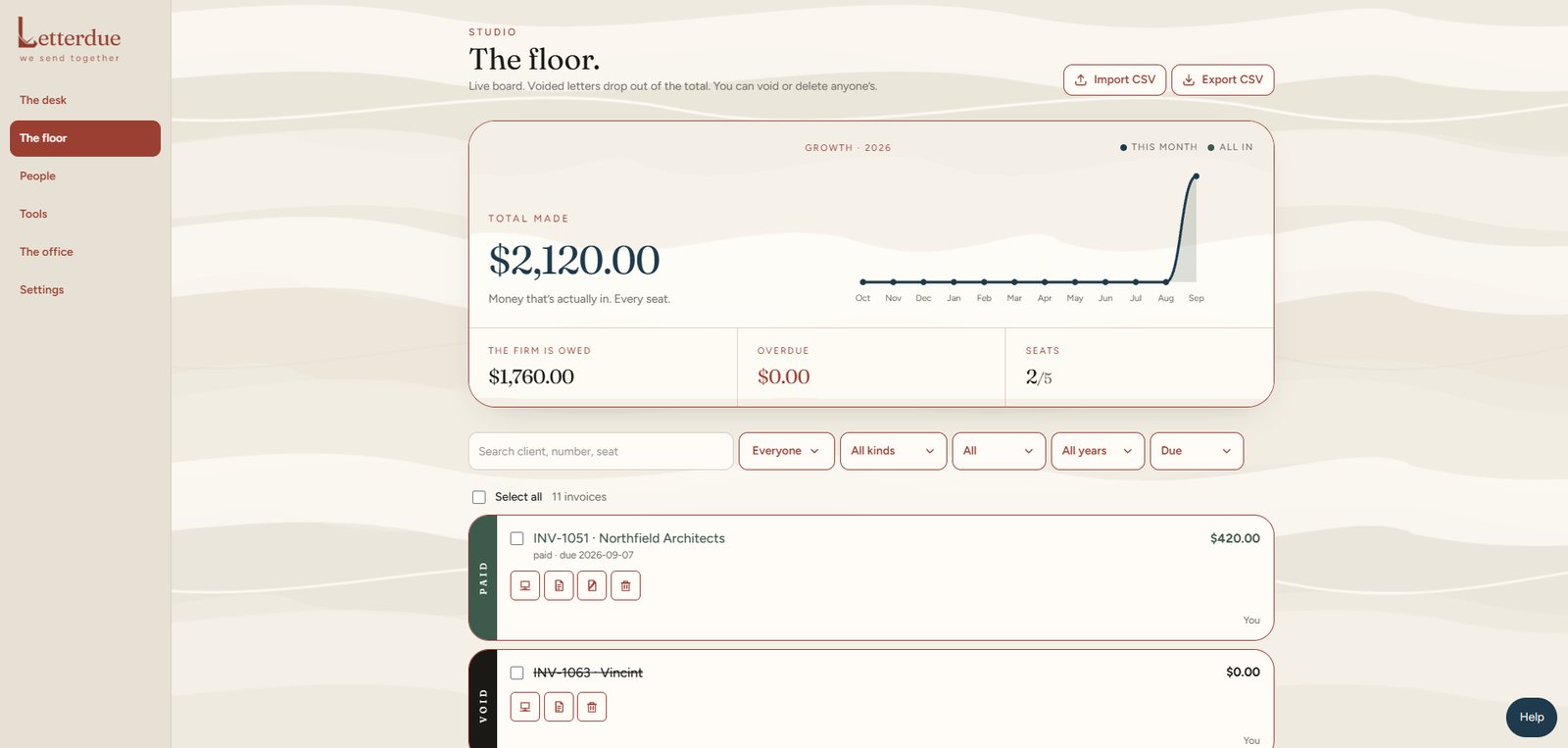
The floor is Studio only. One live board of every seat’s sent, paid, accepted, and void letters. Drafts stay on that person’s desk until they send. The board refreshes on its own.
- 1
Total made is money that’s actually in. Growth is the last twelve months.
- 2
Filter All kinds / Invoices / Estimates / Bids, then Sent / Accepted / Paid / Void. Year and sort (due, amount, name) match The desk. Filter by whose desk. Ten letters on a page.
- 3
Void drops a letter out of the total but keeps the record. Delete is gone. Owner select all deletes or downloads the filtered set.
- 4
Owner can void or delete anyone’s. Other seats can void or delete their own.
- 5
PDF, Import CSV, and Export CSV are on the floor. Export is everyone on the firm. Import lands on your desk, then the floor. Invoice numbers stay unique across the firm.
This login
Password, billing, sign out
Settings vs The officefreeprostudio
The office is paper: letterheads, signatures, services. Settings is the login: seats, pay links, billing, password, CSV, sign out.
- 1
Change password if this login has one. Google / X logins don’t.
- 2
Desk CSV (Pro): Import and Export on the desk. Export is this login’s letters — number, kind, client, status, totals, issued, due. Same files live in Settings. Free desks don’t get it.
- 3
Studio owner and Studio seats also get Floor CSV here: every seat’s letters. Same file as Export CSV on The floor.
- 4
Manage billing opens Stripe for the person who pays the plan.
- 5
Sign out leaves this login. The free guest desk on that browser is a different pile of letters.
Something’s stuckfreeprostudio
Try the search above. If the desk and this page still don’t cover it, write hello@letterdue.com. Say whether you’re on Free, Pro, or Studio, and which email the login uses.
Nothing in help matches that. Try “pay link”, “seats”, or “PDF”.